
Connect HDMI
Plug the vSeeBox into your TV with HDMI and switch your TV to the matching input.
Pair the remote, connect WiFi, let the apps install automatically, and start streaming from the home screen. No confusing steps, no technician needed.
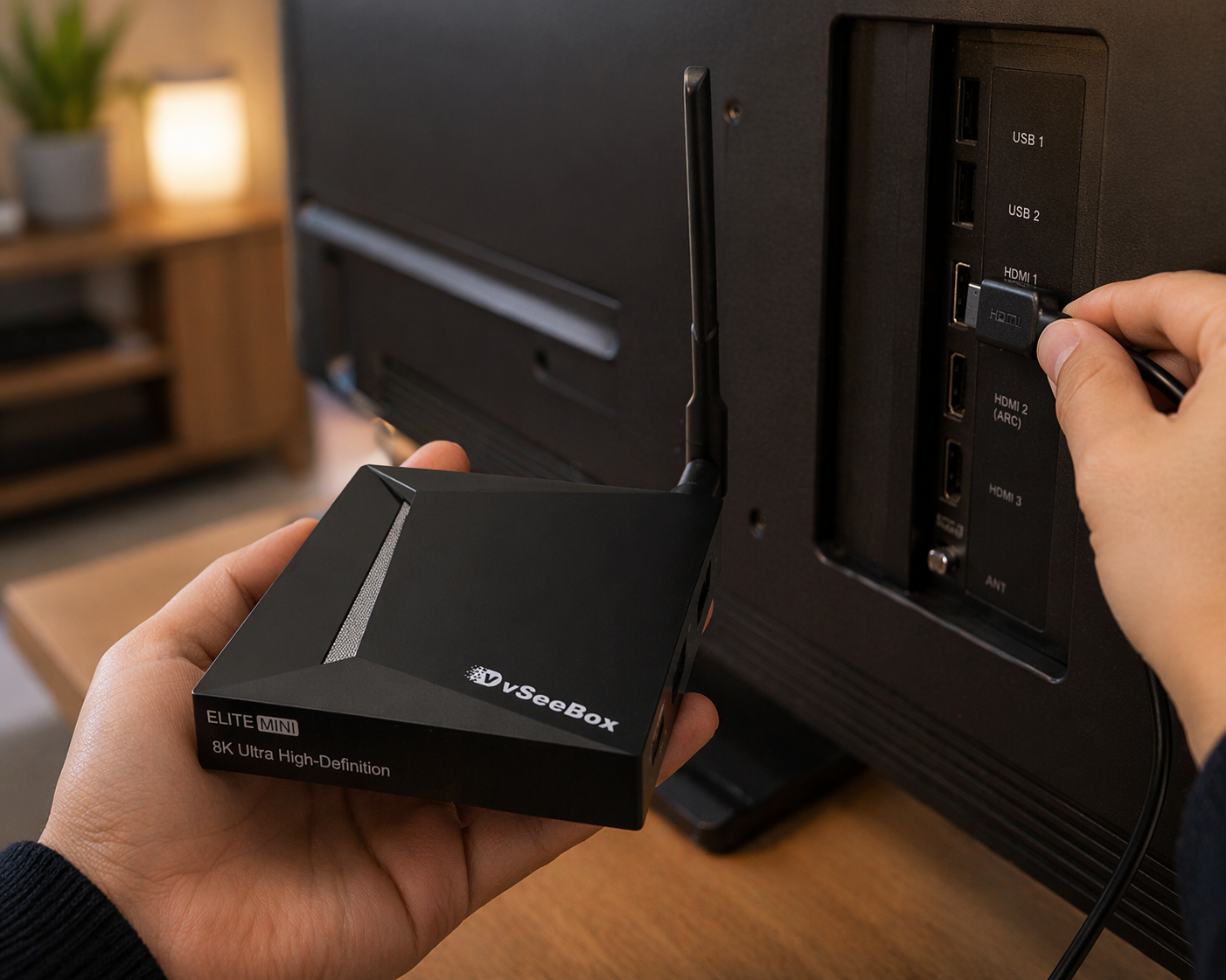
Keep the device, HDMI cable, power adapter, remote, and your WiFi password nearby before you start.
Plug the vSeeBox into your TV with HDMI and switch your TV to the matching input.
Connect the power adapter and wait for the setup screen to appear.
Follow the on-screen pairing prompt so the remote can control the box.
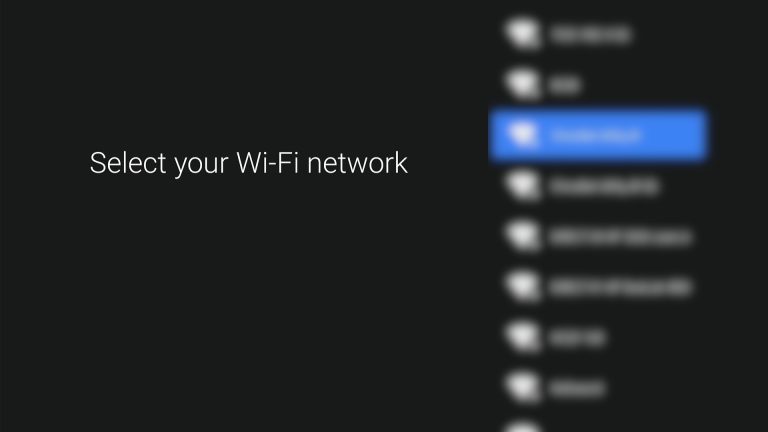
Choose your home network and enter the correct password carefully.
When the pairing screen appears, press and hold the required remote buttons shown on the TV. Keep the remote close to the box until pairing completes.
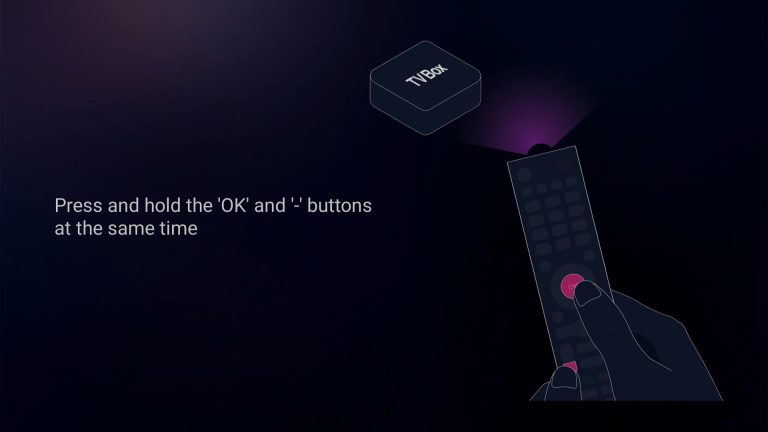
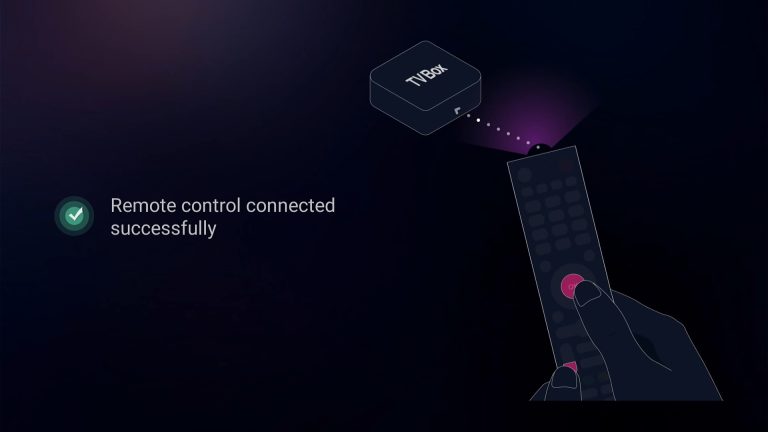
Once the remote is paired, continue to the next setup screen. The remote should now move through menus smoothly.
Select your home WiFi from the list. For the smoothest streaming experience, use the stronger and faster network available in your home.
Type the password exactly as it appears, including capital letters and symbols. After connecting, the box can continue the setup process.
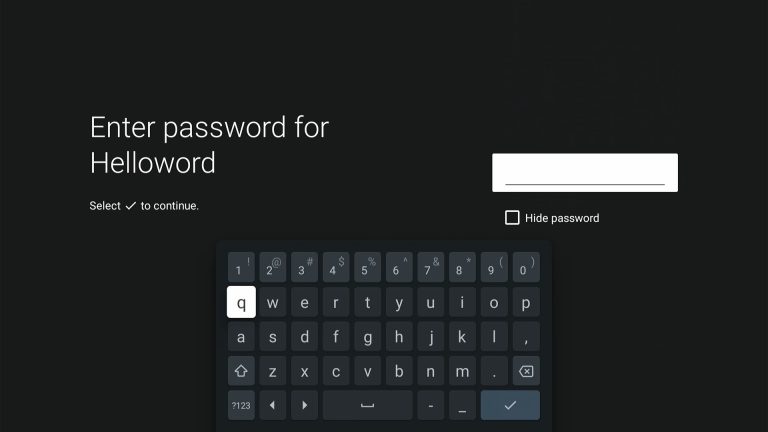
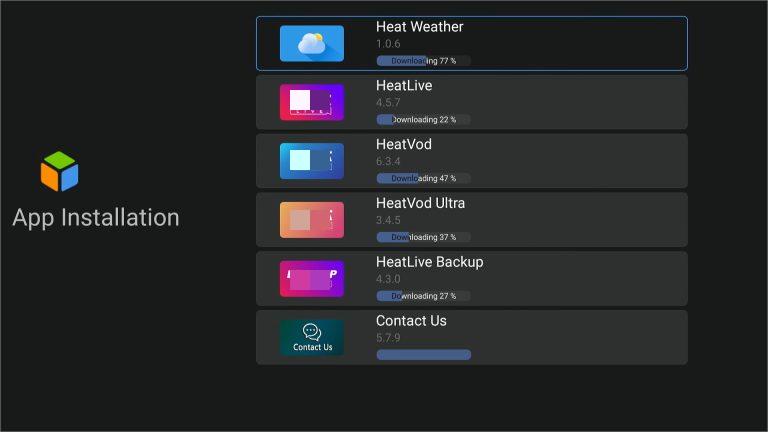
After WiFi is connected, the device may install or update apps. Keep the box powered on and do not unplug it during this step.
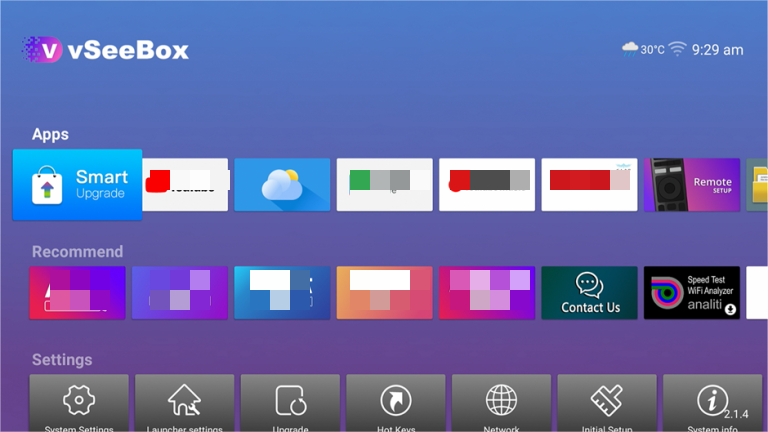
When the home screen appears, setup is complete. You can open apps, adjust network settings, or start watching from the main menu.
Use this video if you prefer to follow along visually from remote pairing through the first setup screens.
If setup stalls at the network step, these screens help you confirm connection status and identify password or signal problems.
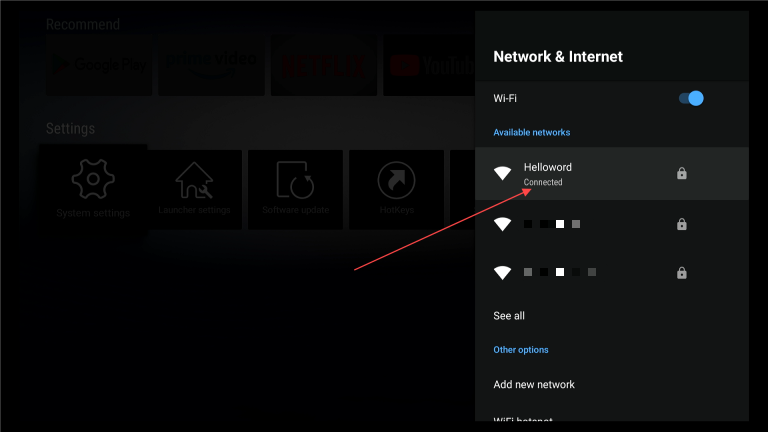
If your network shows connected, continue with app installation or return to the home screen.
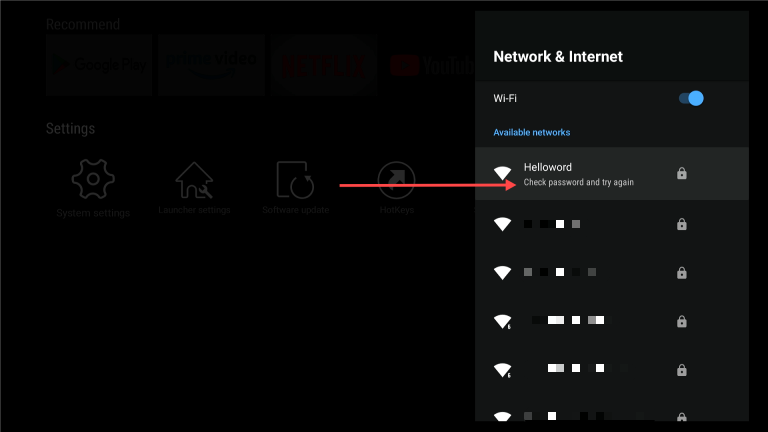
If the screen asks you to check the password, re-enter it carefully or restart your router before trying again.
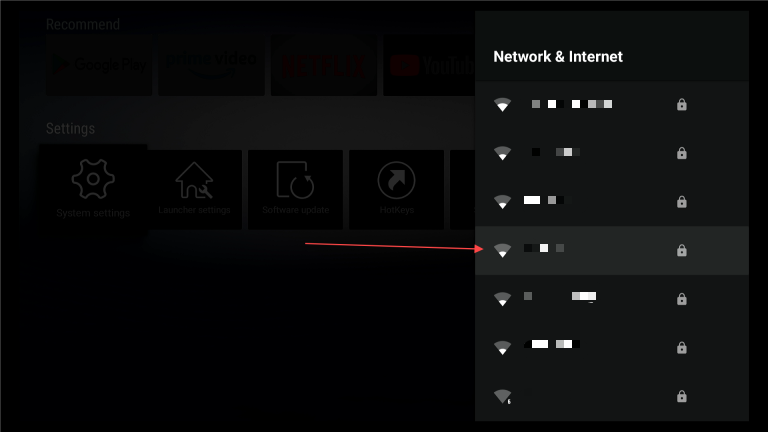
Select the network with the strongest signal. Move the box closer to the router if needed.
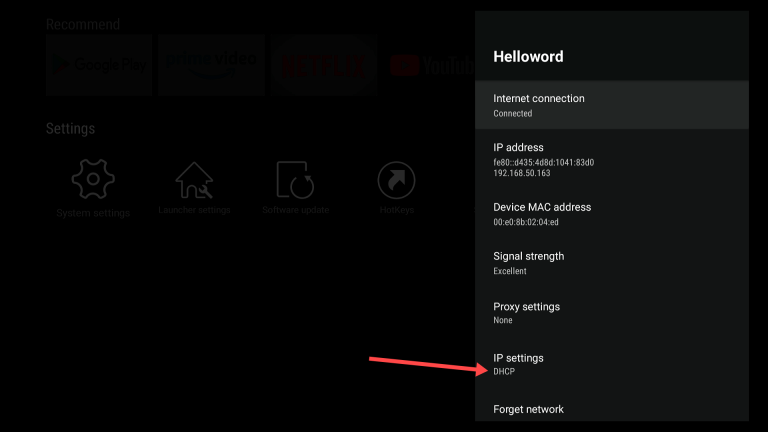
Advanced users can review IP, MAC, signal strength, and DHCP settings from the WiFi detail screen.
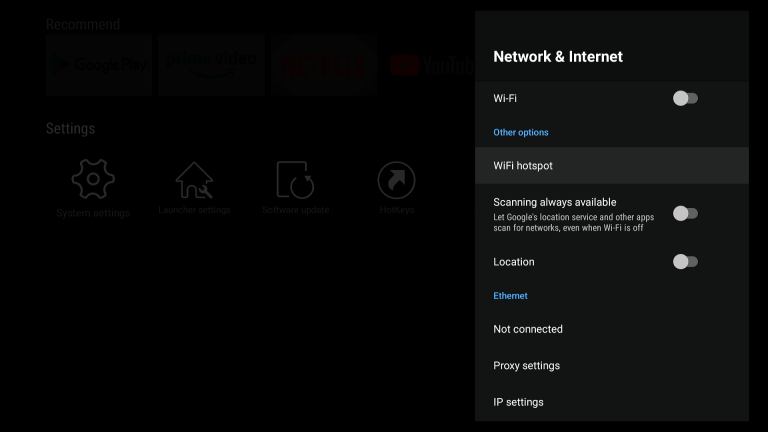
Use Network & Internet settings to switch WiFi, forget a saved network, or review connection options before reconnecting.
Keep the remote close to the box, repeat the pairing shortcut shown on the screen, and restart the device once if the first attempt fails.
Use 5GHz when the router is nearby for better speed. Use 2.4GHz if the box is farther away or separated by walls.
App installation depends on network speed. Keep the device powered on and avoid pressing random buttons while installation is running.
Yes. If your device and router support wired connection, Ethernet can provide a more stable setup and streaming experience.
Visit support resources or contact us if your device needs extra assistance.
loading